Remove Glasses Glare with Open AI Processing

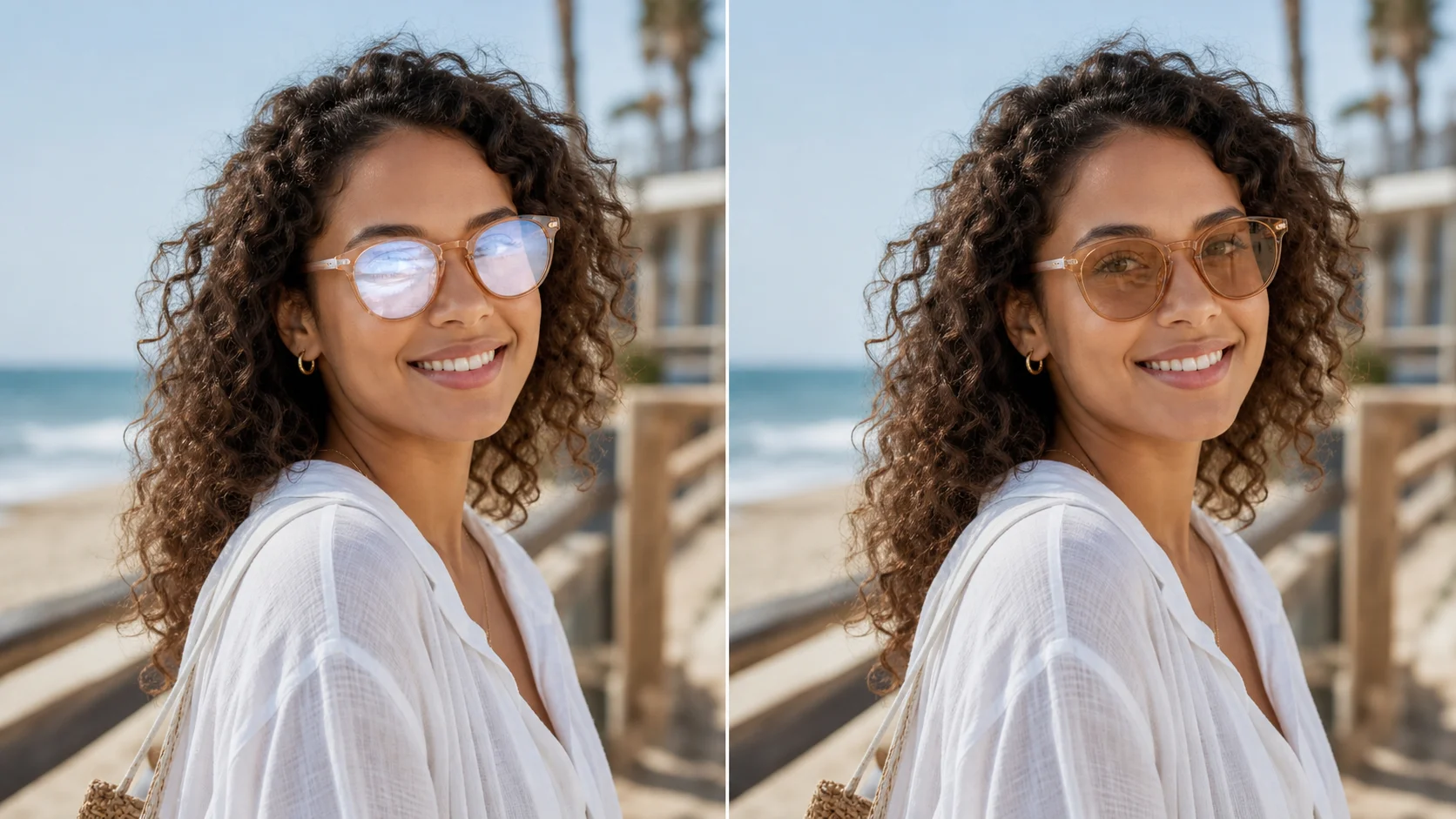
Upload a photo where glasses glare covers the eyes and watch the AI rebuild the lens area pixel by pixel. The model identifies reflection zones — window light, screen glow, flash bounce, overhead spots — then fills each region with coherent lens and eye texture drawn from the surrounding image data. No black-box filters, no invisible edits. You see the input, the detection map, and the clean output. Everything is transparent and reproducible. It is the most transparent way to remove glasses glare from photo details, take reflection out of glasses, and reduce glasses glare in photos whether from prescription frames or sunglasses.

Open AI glare removal with full pipeline visibility

Every step from detection to reconstruction is transparent — see what the AI identifies and how it rebuilds each pixel.

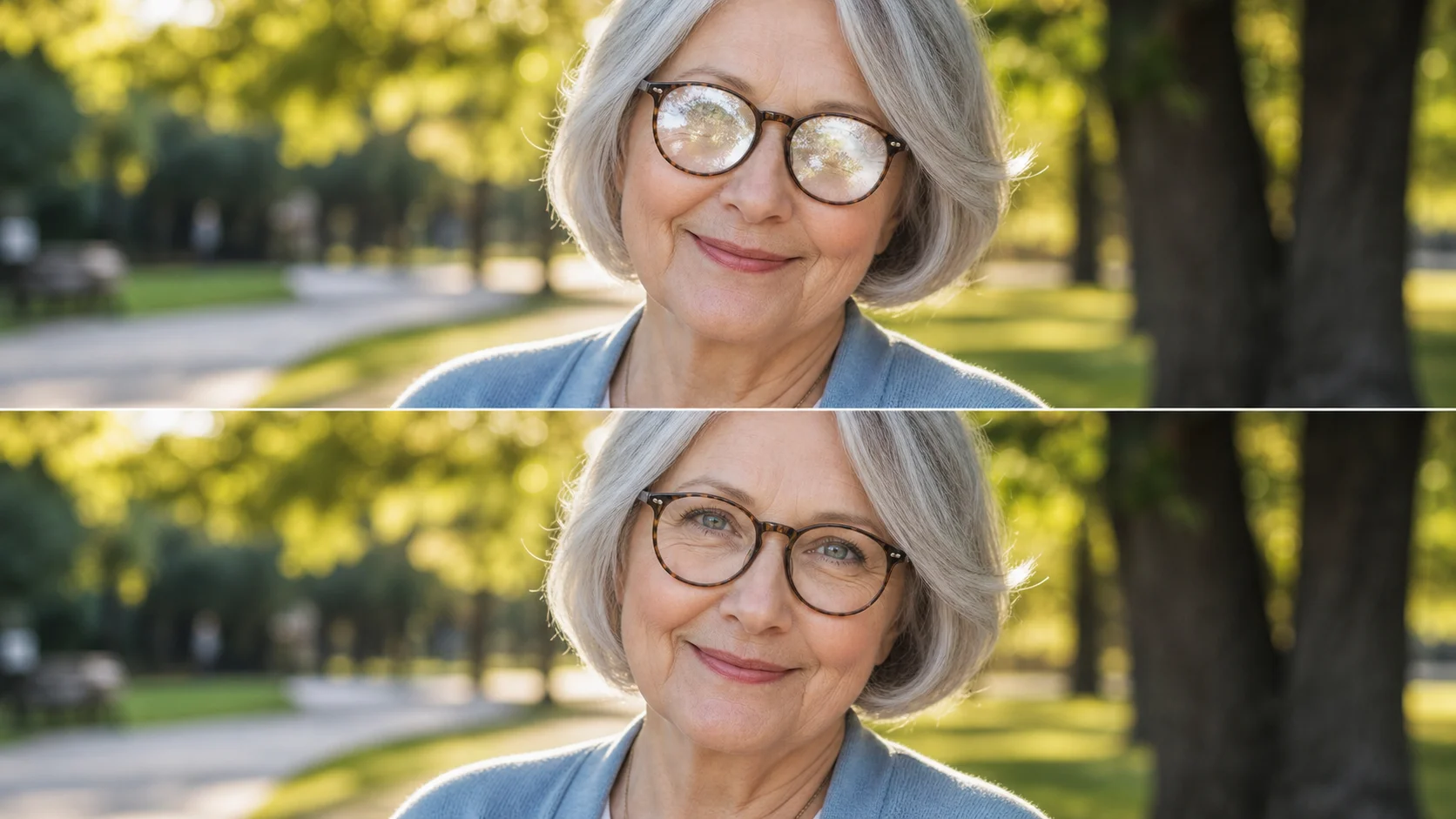
Open detection pipeline showing AI-identified glare zones on eyeglasses before removal

Open Detection Pipeline

See exactly where the AI identifies glare on the lens

The model outputs a detection overlay that marks every reflection zone before it begins reconstruction. You can inspect which pixels the AI considers glare and verify that no important detail — iris texture, eyelash shadow, frame edge — was misidentified. Full visibility into the process, no hidden logic.

Open pipelineDetection mapFull visibility
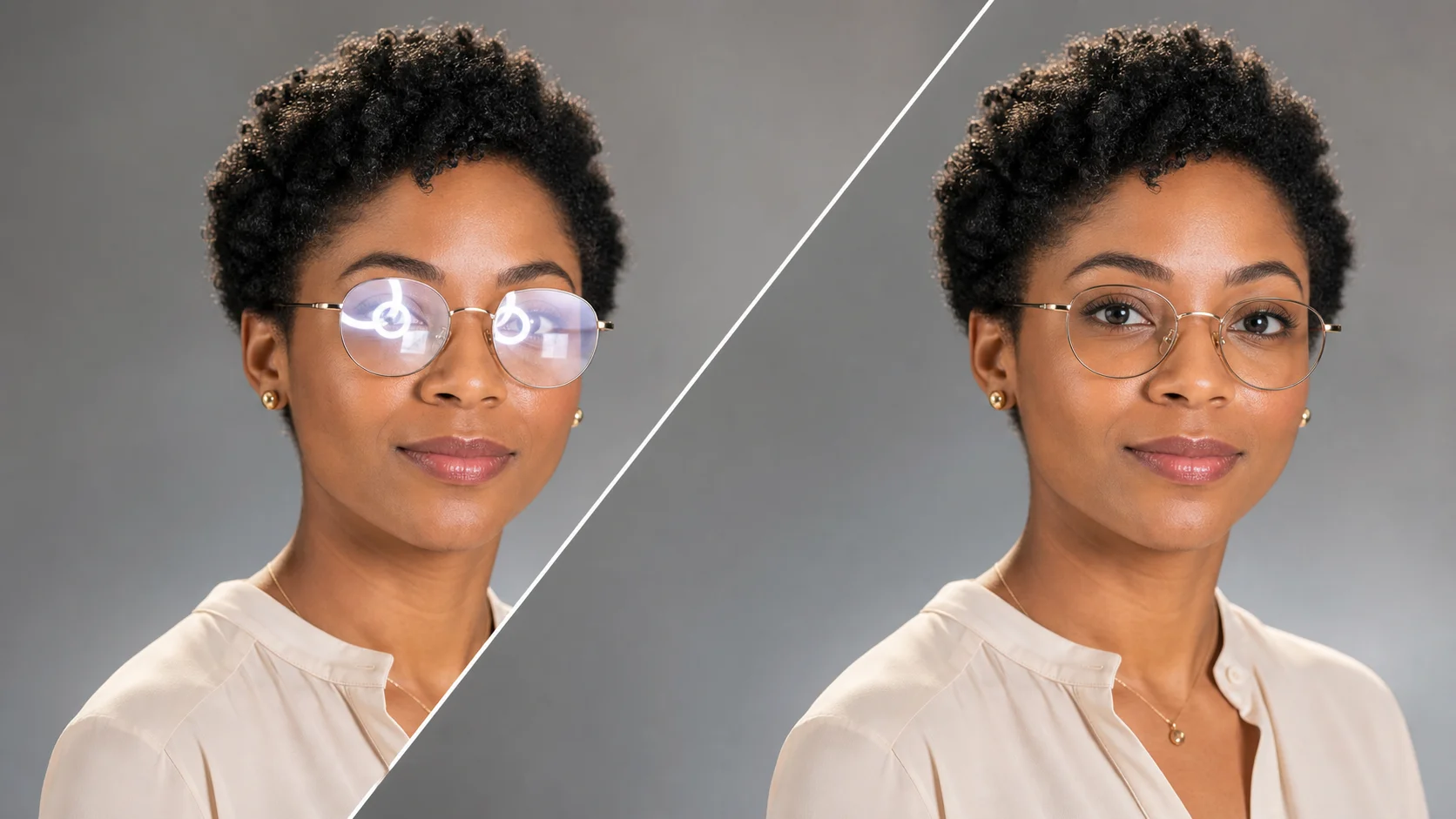
Prompt-controlled AI glare repair showing adjustable reconstruction behavior

Prompt-Controlled Repair

Adjust the reconstruction behavior with natural language

The default mode removes all reflections automatically, but you can steer the result by describing specific constraints. Ask the AI to preserve a subtle catchlight, keep the lens tint, reduce only the harsh hotspots, or match the eye color from the unglared reference area. For anyone looking for a photo editor to remove glasses glare, the prompt interface gives you control without needing masking skills. No need to manually edit glare out of glasses — just describe what you want and let the AI do the rest.

Prompt controlNatural languageAdjustable output
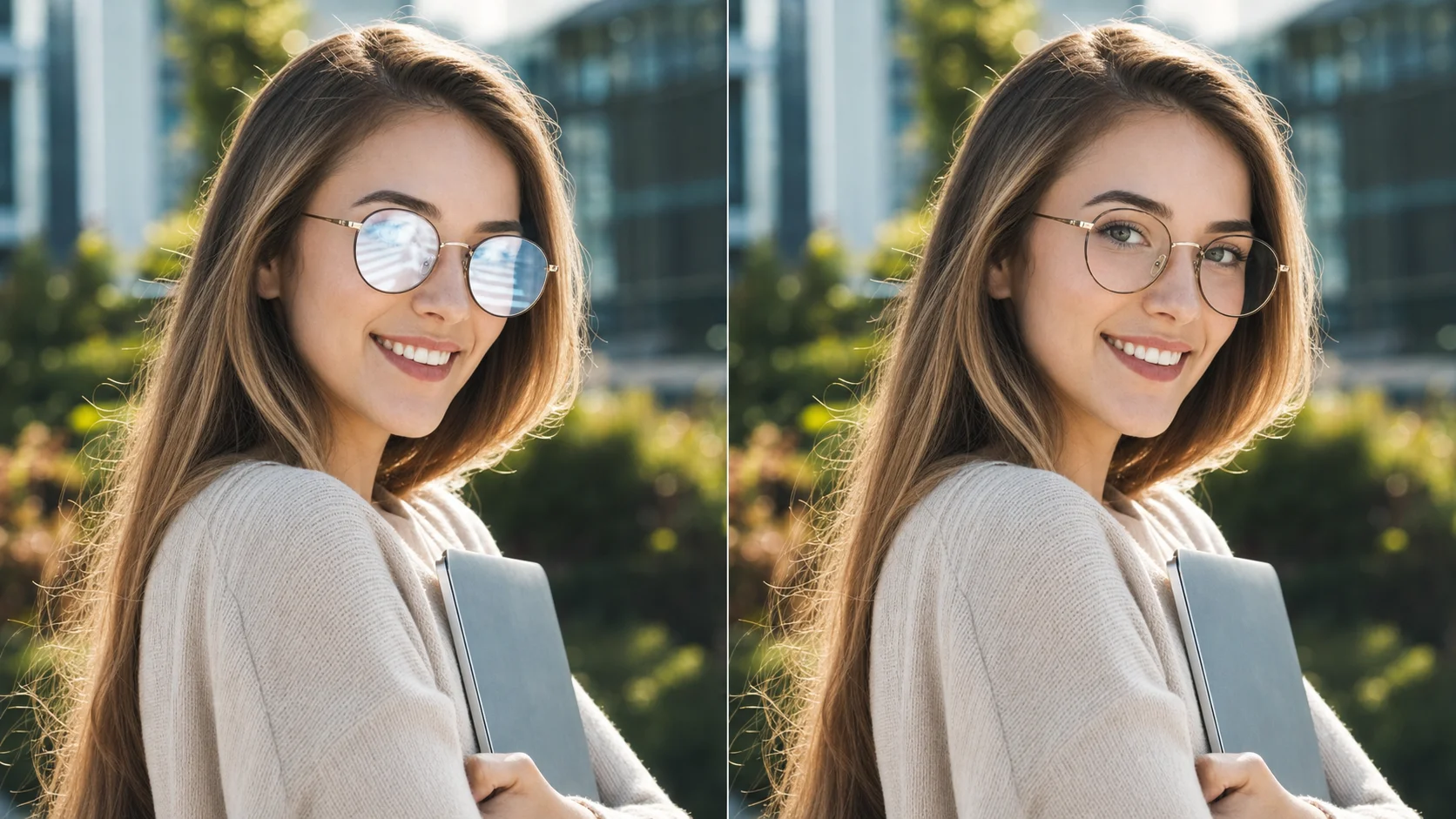
Open format output from AI glasses glare removal ready for reuse in any workflow

Glasses reflection removal for clean reusable output

Download the output and reuse it in any workflow without lock-in

The clean portrait is delivered as a standard image file with no watermark, no hidden metadata, and no platform-specific encoding. You can drop it into Photoshop, share it on social media, print it, or feed it back into another AI pipeline. Whether you need to remove specs glare from photo assets for ecommerce or remove eyeglass glare from team headshots, the output is ready for any use. The output is yours — open and reusable on your terms.

RemixableNo lock-inStandard format
Workflow

How to remove glasses glare with open AI

Follow the transparent pipeline from upload to output. Every step is visible and reproducible, so you can remove glasses glare from photo portraits without guessing what changed.

1

Upload your glared image

Select a portrait with visible lens reflection. The AI accepts standard image formats and processes the full resolution without downscaling, making it a direct remove reflection from glasses in photo online workflow.

2

Inspect the detection map

The model generates a glare detection overlay showing exactly which pixels it will reconstruct. Review the map to verify the AI correctly identified reflection zones versus natural lens detail.

3

Compare before and after

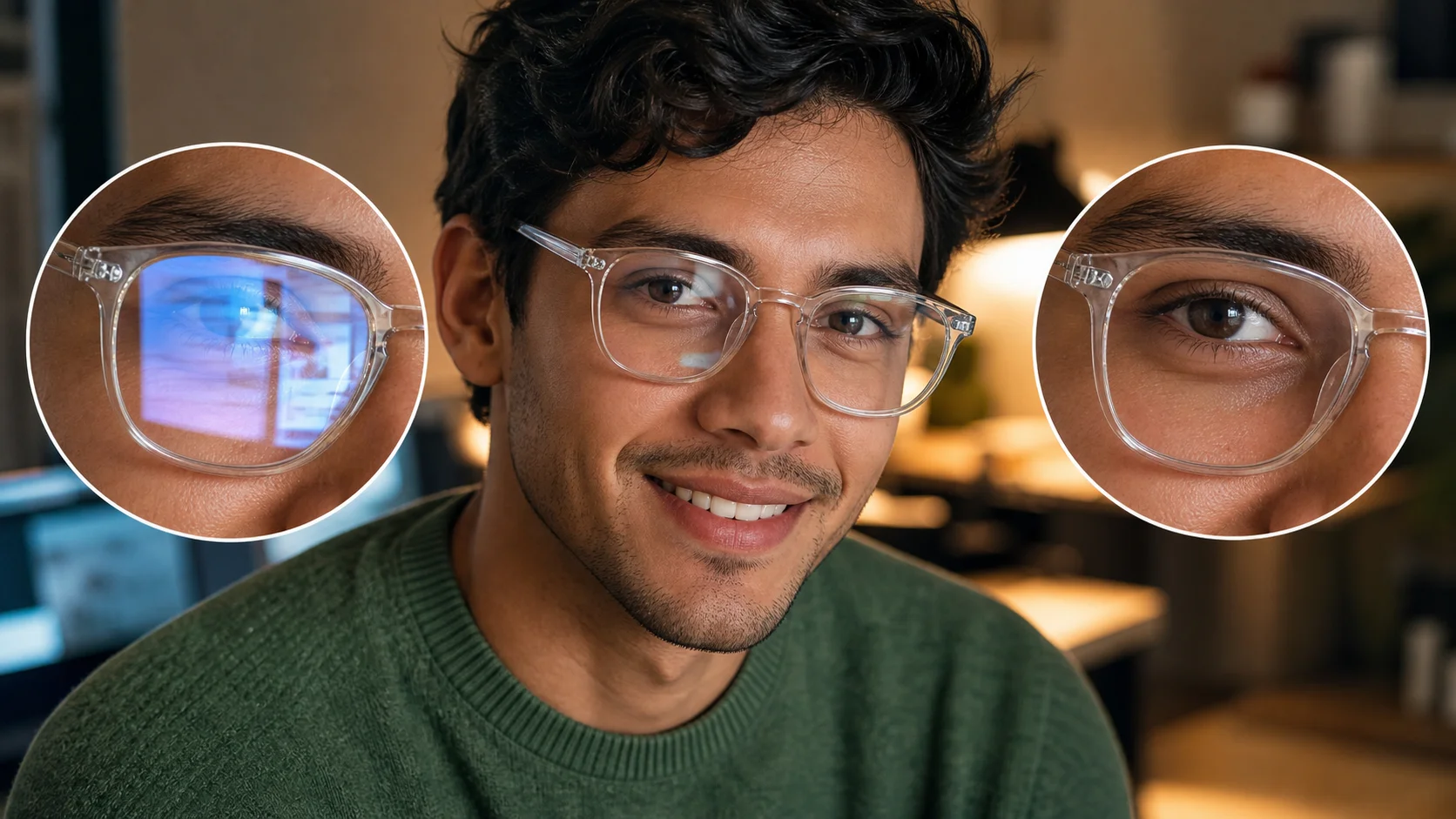
Toggle between the original image and the AI's reconstruction. This side-by-side view shows exactly which pixels were identified as glare and how the model rebuilt them — full transparency from input to output.

4

Download the open output

Save the clean result as a standard image file. No watermarks, no proprietary format, no hidden changes. The output is yours to inspect, reuse, and remix.

Get the most from open AI glare removal

Tips for working with the detection pipeline, prompt controls, and transparent output to get the best results.

Frequently asked questions about open AI glare removal

Common questions about transparency, detection maps, prompt control, and output format. Use remove glasses glare when lens reflections hide the eyes, wash out the face, or make a headshot look unfinished. The remove glasses glare workflow should keep the same person, pose, expression, frame, and background while reducing reflection. For the cleanest result, remove glasses glare with one clear uploaded photo and ask for natural eyes, realistic lenses, and believable lighting. Teams use remove glasses glare before profile photos, founder portraits, classroom images, and creator thumbnails go live. Use remove glasses glare as the exact cleanup instruction whenever reflections hide the eyes. Repeat remove glasses glare in refinements when lens shine, screen bounce, window glare, or flash reflection remains visible. A strong remove glasses glare prompt asks the model to restore natural eyes, realistic transparent lenses, original face shape, and the same background while removing only the glare. Use remove glasses glare again when small reflections remain near the pupils, lens edges, or bright window spots. The phrase remove glasses glare should stay in the prompt so the edit focuses on reflection cleanup, not a full portrait restyle. A reviewer should see that remove glasses glare preserved the original face and only reduced the distracting lens shine. Use remove glasses glare for final review and remove glasses glare again if any reflection still distracts from the eyes.





Try open AI glasses glare removal now

Upload a photo, inspect the detection map, and download a clean transparent result. Free and open.

Try It Free